
Quick Answer
A typical Ajax wireless alarm installation takes 2-4 hours for a standard residential property (4-6 rooms). The Hub setup takes 15-30 minutes, detector pairing takes 30-60 minutes, and app configuration takes another 30 minutes. Professional installation is recommended to ensure SSAIB compliance and proper device placement. See our Ajax alarm installation service for how we survey, install and monitor Ajax systems.
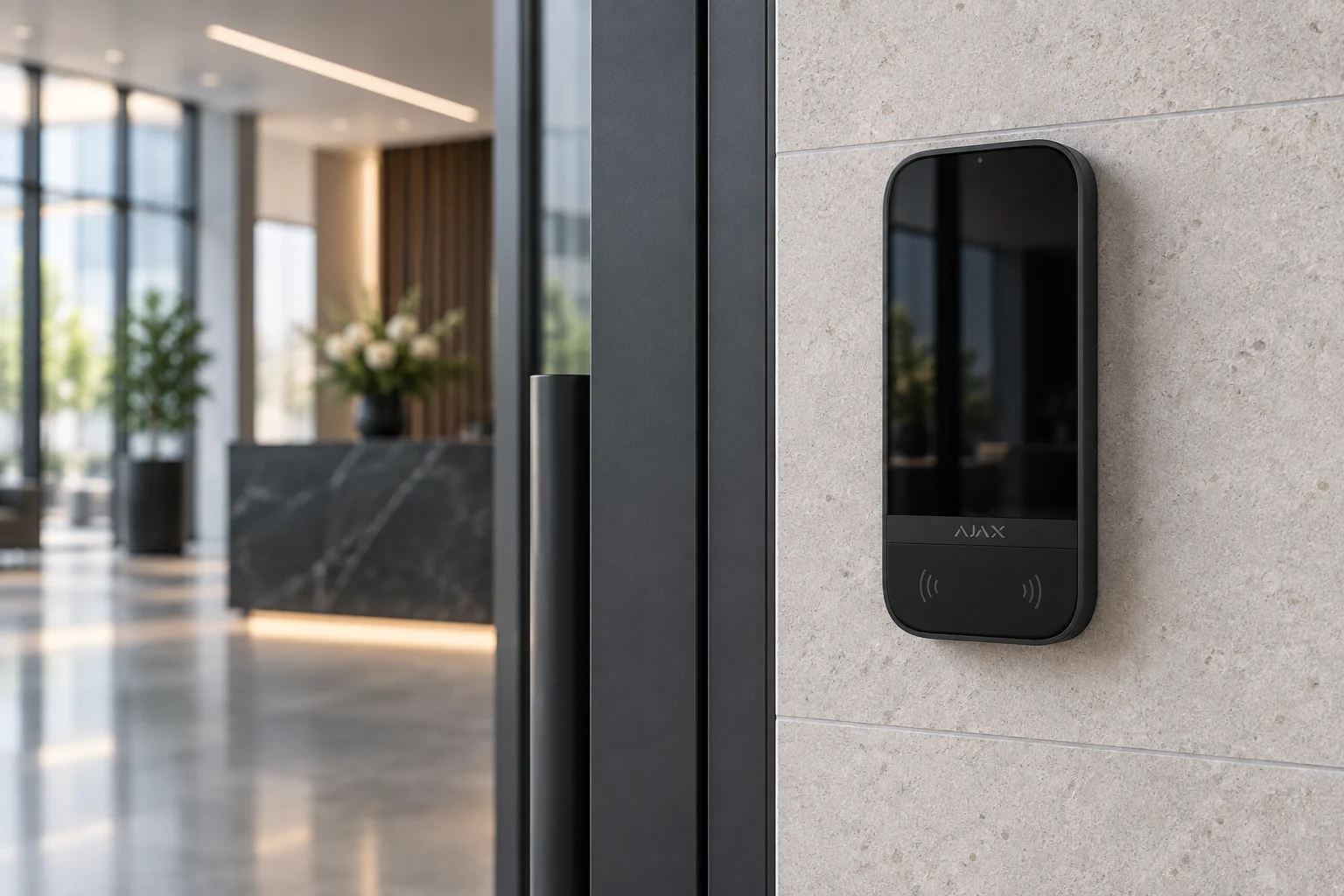
This guide walks you through what the process involves when Advanced Overwatch installs your Ajax system.
Ajax wireless alarm systems are designed for relatively quick installation compared to traditional wired alarms. However, getting the most out of your system requires proper planning, placement, and configuration.
This guide explains the complete Ajax installation process, what to expect, and why a professional installation matters.
What You’ll Need Before Installation
Before your Ajax installation, a professional installer will:
- Conduct a site survey: assess the property layout, identify vulnerable entry points, and plan detector placement
- Check signal coverage: Ajax uses Jeweller radio protocol, which needs clear communication between Hub and all devices
- Confirm your broadband setup: the Hub needs a stable internet connection (Ethernet or Wi-Fi for Hub 2 Plus)
- Discuss your needs: pets, children, overnight workers, remote access requirements
Step 1: Hub Setup (15-30 minutes)
The Hub is the brain of your Ajax system. Here’s how it’s installed:
Physical Installation
- The Hub is typically placed in a central location (e.g., hallway cupboard)
- It needs power (mains adapter) and internet (Ethernet cable or Wi-Fi)
- A mobile sim can be added as backup connectivity
Hub Registration
- Download the Ajax app (available on iOS App Store and Google Play)
- Create an account (or log in if you already have one)
- The app will guide you through adding a new Hub
- Scan the Hub’s QR code (on the back or box)
- Name your Hub (e.g., “Home, Main Street”)
Initial Configuration
In the app, you’ll set:
- Address: Your property address for emergency response
- Notification preferences: How and when you want to be alerted
- User access: Who else can control the system (family members, tenants)
Step 2: Detector Pairing (30-60 minutes)
Ajax detectors are paired to the Hub via the app. This is called detecting in Ajax terminology.
How Detection Works
- In the Ajax app, go to Devices and tap Add Device
- The app enters detection mode: the Hub starts looking for new devices
- Power on the detector (remove the battery strip or add batteries)
- The Hub automatically detects and identifies the device
- Name the device (e.g., “Front Door”, “Living Room Motion”)
- Repeat for all detectors
Common Ajax Detectors
| Device | Purpose | Placement |
|---|---|---|
| DoorProtect | Door/window contact | Every external door |
| MotionProtect | Motion detection | Hallways, rooms |
| MotionProtect Pet | Pet-immune motion (up to 20kg) | Homes with pets |
| MotionCam | Motion + photo verification | High-risk areas |
| GlassProtect | Broken glass detection | Ground floor windows |
| FireProtect | Smoke and heat detector | Kitchens, hallways |
| LeaksProtect | Water leak detection | Kitchens, bathrooms |
Step 3: Optimal Detector Placement
Proper placement is critical for reliable detection and false alarm prevention.
External Doors
Place DoorProtect detectors on:
- All external doors (front, back, side)
- French doors and sliding patio doors
- Garage doors
Tip: The detector goes on the fixed door frame and its magnet goes on the door itself.
Motion Detectors
Place MotionProtect detectors:
- In hallways (anyone entering must pass through)
- In living areas (ground floor common areas)
- In stairwells (catches movement between floors)
Height matters: Detectors should be mounted at 2.4m height for optimal coverage. Avoid placing them:
- Directly above heaters or air conditioning
- Facing windows (especially south-facing in direct sunlight)
- Where pets can trigger them (use MotionProtect Pet if needed)
MotionCam Placement
MotionCam detectors take a photo when triggered. Best placed:
- Near the main entrance (verify visitors)
- In rooms with valuable items
- Back doors and vulnerable points
Step 4: App Configuration (30 minutes)
Once all devices are paired, configure your system in the app:
Create Rooms
Group devices by location:
- Ground Floor, First Floor, Garage, Outbuilding
- This makes it easier to arm specific areas
Set Up Automation (Scenarios)
Ajax supports automated actions:
- Device triggered: When MotionCam detects motion, send a push notification
- Schedule: Automatically arm the system at 11pm every night
- System status: If power is lost, notify me immediately
Configure Arming Modes
| Mode | What it does |
|---|---|
| Full arm | All detectors active |
| Partial arm | Only selected detectors (e.g., perimeter sensors while you’re home) |
| Night mode | Arm downstairs only |
Add Users
Add family members or trusted contacts who can:
- Receive notifications
- Arm/disarm the system
- View event history
Step 5: Professional Commissioning
A professional installer will perform additional steps:
Signal Testing
Using the Ajax app’s Signal Range Test, verify that all devices have a strong radio signal to the Hub. Devices showing weak signal may need:
- A Range Extender (extends Jeweller signal)
- Alternative mounting position
- Hub relocation
Walk Test
Walk through the property triggering each detector. This confirms:
- Correct detector operation
- Appropriate sensitivity settings
- No blind spots in coverage
Monitoring Setup
If you’re adding professional monitoring:
1. Configure the Hub’s communication path (Wi-Fi + LTE as backup)
2. Register with an Alarm Receiving Centre (ARC)
3. Set up notification procedures and keyholder list
4. Test the monitoring connection
Common Installation Issues and Resolutions
| Issue | Cause | Solution |
|---|---|---|
| Detector not pairing | Battery not inserted | Remove and reinsert battery |
| Weak signal | Too far from Hub | Add Range Extender or reposition |
| False alarms | Pet triggering standard detector | Switch to MotionProtect Pet |
| App notifications delayed | Poor internet | Check Hub connection; add LTE backup |
| Device offline | Battery depleted | Replace battery (7-year rated) |
After Installation: What to Expect
Once your Ajax system is installed and commissioned:
- You can control everything from the Ajax app
- Push notifications alert you to any event
- System status is always visible in the app
- Regular testing (weekly recommended) keeps the system healthy
Advanced Overwatch offers annual maintenance visits to:
- Test all detectors
- Replace batteries
- Update firmware
- Verify monitoring connection
Frequently Asked Questions
How long does a professional Ajax installation take?
Most residential properties take 2-4 hours. Larger homes or commercial sites with more devices may take a full day.
Can I add devices myself later?
Yes. Ajax is fully expandable. You can pair new devices via the app in minutes. However, for SSAIB compliance, the system should be commissioned by a qualified engineer.
What happens if my internet goes down?
Ajax Hub has a built-in battery backup (up to 16 hours). If your internet drops, the Hub continues to operate. You won’t receive app notifications, but the alarm will still sound. Add an LTE sim for full resilience.
Do I need to tell my insurance company?
Yes. Many insurers offer discounts for professionally installed, monitored alarm systems. Keep your SSAIB certificate as proof.
Can I take the system with me if I move?
Yes, Ajax is fully portable. Simply pack the devices and set up at your new property. Notify your monitoring station of the new address.
What if a detector battery dies?
Ajax detectors send a low-battery notification via the app well before they fail. Batteries typically last 3-7 years depending on the device and usage. Professional maintenance catches these in advance.
Can I install an Ajax alarm myself?
Ajax kit is set up through the Ajax app, so a careful homeowner can pair a hub and a few detectors. Most insurers, and any police response, expect the system to be designed and installed by a certificated company, so if you want monitoring or police response, use an SSAIB or NSI certificated installer. We fit and commission Ajax systems across Northern Ireland.
How many devices can an Ajax hub take?
Ajax lists the Hub 2 at up to 100 connected devices, 50 users and 9 security groups. Larger sites can use a bigger hub or range extenders, and we size this at the survey.
Related reading
- Service page: Intruder alarm installation in Northern Ireland
- Related guide: Ajax vs Orisec: Which Wireless Alarm System Should You Choose?
- Related guide: How can I stop my intruder alarm giving false activations?
- All of our guides: Knowledge Base