
Quick answer
You view your cameras remotely by installing the app that matches your recorder, adding the recorder to that app by scanning its QR code or typing its serial number, then signing in with the username and password set when the system was commissioned.
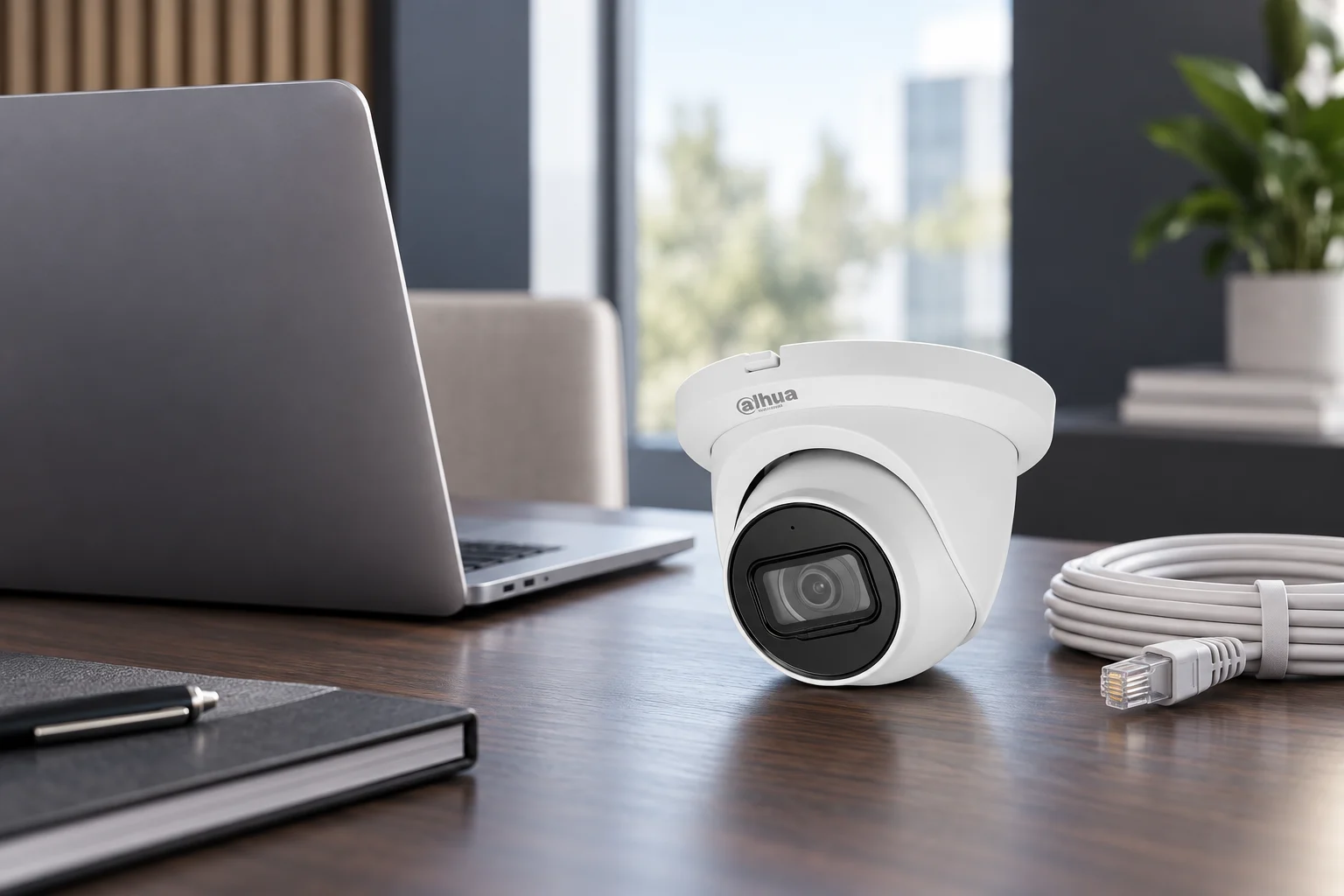
Almost every system Advanced Overwatch installs can be viewed remotely on a smartphone, tablet or computer. When your system was commissioned we set up the manufacturer’s mobile app on your device and confirmed a live picture before we left. If you have a new phone, or the app has been removed, you can restore access in a few minutes.
What you need before you start
- The make of your recorder and the name of its app, both noted on the handover sheet we left with you.
- The recorder’s QR code or serial number. It is printed on the unit itself and also shown in the on-screen menu.
- The username and password created at installation. These are separate from your broadband password and from any account you create in the app.
- A working internet connection at the property, and mobile data or Wi-Fi on the phone you are setting up.
Setting the app up, step by step
- Install the app your recorder uses from the App Store or Google Play. Check that the publisher matches the make of your recorder, because several similarly named apps exist.
- Open the app, create or sign in to an account if it asks for one, then choose the option to add a device.
- Scan the QR code on the recorder, or the one shown on its screen. Most systems fill in the connection details automatically from that code.
- Enter the username and password set during installation, then save.
- Open the live view and confirm every camera loads. Test playback as well, so you know you can find recorded footage and not only a live picture.
If the app will not connect
Remote viewing depends on the broadband at the property, so start there. The pattern of the failure usually tells you where the problem sits.
- Every camera is offline, on Wi-Fi and on mobile data. The recorder has lost its network connection or its power. Check the router is online, check the network cable at the back of the recorder, then restart the recorder at the mains and allow two minutes for it to reconnect.
- It works on the property’s Wi-Fi but not away from the building. The app is only finding the recorder on the local network. The remote connection service on the recorder is switched off, or the router is blocking it. This is the most common symptom after a router is replaced.
- The login is rejected. The password has been changed, or the recorder has locked the account after repeated failed attempts. Many recorders keep a separate app password from the panel password.
- The picture stutters or takes a long time to open. The upload speed at the property is the limit, not your phone. Switching the app to the substream, which is a lower resolution version of the same picture, usually settles it.
- One camera is black while the rest are fine. That is a camera fault rather than a remote access fault, and it is worth checking that camera on its own.
If you have changed broadband provider or router recently, the recorder normally needs to be reconnected to the new network before remote viewing works again.
Keeping remote access secure
Change any default password on the recorder and the app, use a password you do not use elsewhere, and give each person their own login where the recorder supports it, so access can be removed for one person without changing it for everybody. Review who holds access when staff or tenants change.
Footage that shows people is personal data, so the UK GDPR applies to how it is stored, viewed and shared, and the Information Commissioner’s Office publishes guidance on video surveillance for both homes and businesses. BS EN 62676 is the European standard series for video surveillance systems and covers system requirements, transmission and image quality.
When to call an engineer
Call us if the recorder still does not appear in the app after a full power cycle, if the admin password has been lost, if the system was installed by somebody else and you have no handover details, or if cameras keep dropping off the app for no obvious reason. A camera that repeatedly disconnects often points to a cable, connector or power supply problem that is easier to find on site than over the phone. Our team can often check the system remotely before arranging a visit. Call Advanced Overwatch on 028 7087 8077. We have supported systems across Northern Ireland since 2017.
Related reading
- Service page: CCTV installation in Northern Ireland
- Related guide: How to Set Up Remote Viewing on Your Dahua CCTV System
- Related guide: Why is my CCTV camera showing a black or blank image?
- All of our guides: Knowledge Base